


Create Consistent Long-Take Scenes with Draft-to-Final Generation
Preview long takes in 480p with Seedance 2.5 Draft Mode in Dreamina, refine camera movement, and render polished 1080p videos with confidence.


0
0
0
0
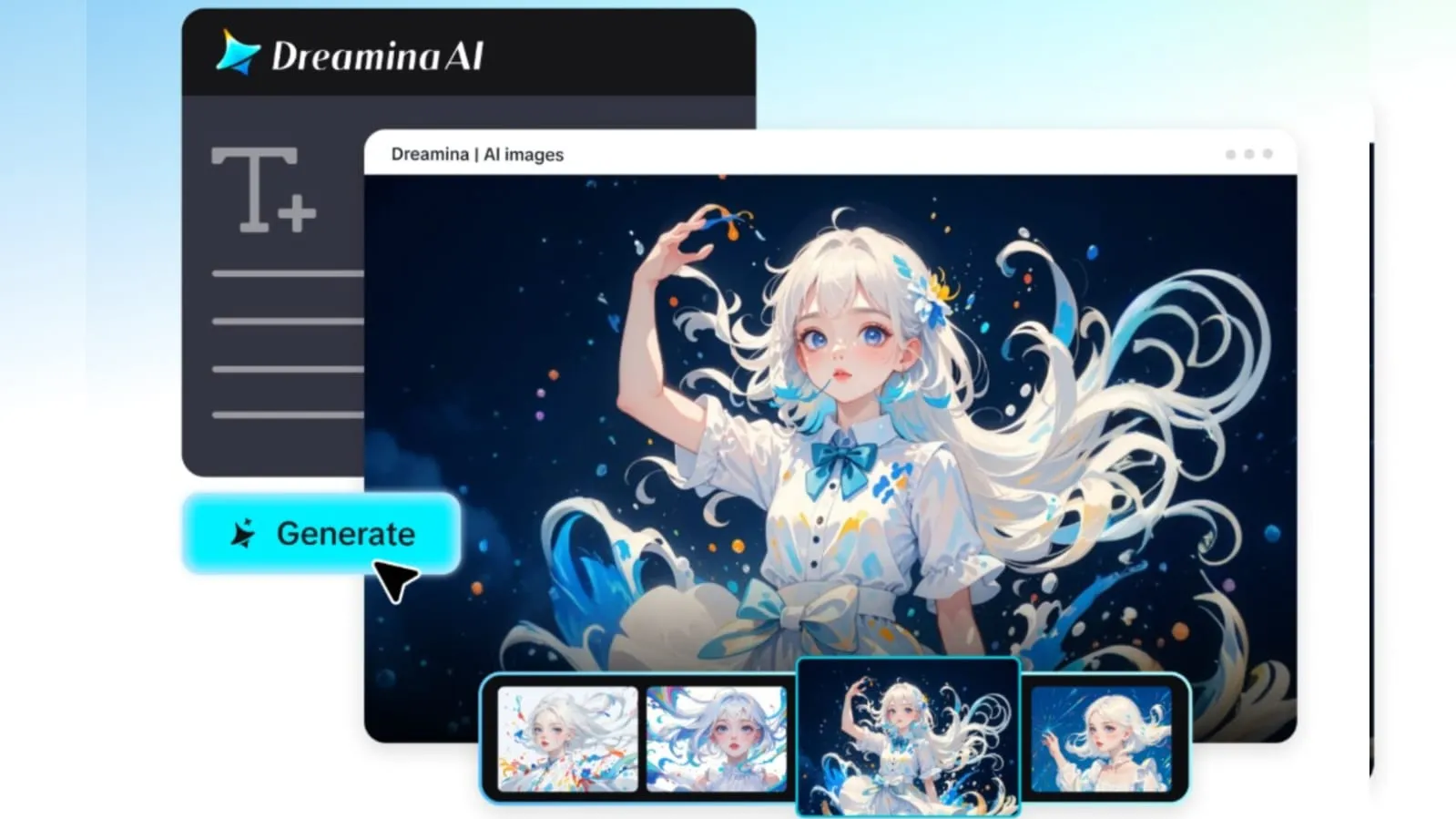
A long take is a promise to your audience: no cuts, no escape, and everything has to work from start to finish. That makes it one of the riskiest shots to generate.
Seedance 2.5 Draft mode, the latest and most advanced video generation model in Dreamina, helps by letting you check the whole walk in 480p before rendering at 1080p. Even if your plan begins with an AI setup, you can confirm the staging first.
The Hidden Challenge of the Continuous Shot
In a long take, small problems pile up. A prop appears twice, a background shopper blocks the action, or the subject drifts out of frame. You can't fix those with a cut. You need to see the full path unfold, and that is what a preview delivers.
Seedance 2.5 Draft Mode at a Glance
Whole-sequence previews
Watch the entire movement at 480p and judge it as a sequence, not a still.
Fresh final generation
The 1080p version is generated again, not stretched from the preview, adding texture and light.
Matching structure
Scene structure, composition, subject motion and camera movement stay closely aligned from Draft to final.
What to Check in a Long Take
-
Where the subject walks and how clear the path is
-
When a prop changes hands
-
How background people are spaced
-
Whether the camera keeps a smooth, steady path
From Market Morning to Final Render: The Dreamina Steps
Step 1: Create a 480p Draft
Add your scene description and optional image, video or audio references. Turn Draft mode on, choose 480p, and wait until the Draft succeeds.
Sample prompt: Create a continuous tracking shot through a produce market at dawn. The camera tracks backward as a woman in a teal jacket passes two stalls. She slows beside a fruit vendor and takes a small paper bag. She continues down the aisle as shoppers pass naturally. Audio: soft market chatter, footsteps, no music.
Step 2: Compare takes and choose the shot
Next, fine-tune your settings by selecting a model, Seedance 2.5 Draft. You can also choose the size of the video, for example 16:9 for a YouTube channel or 9:16 for social media Reels. Lastly, select the duration of video you desire and click generate.
Step 3: Generate and review
Look at composition, performance, camera motion, and pacing. Revise your prompt or references if needed and generate more Drafts. Choose the take that fits your intent. Submit a final task using the same model. Leave out the original inputs, since they carry over. Download the result and review continuity, lighting, and detail.
Keep Your Subject Consistent
Mention fixed details once, such as clothing and the layout of the aisle. Ask for natural background movement without blocking the main action. If a Draft drifts, tweak only that one thing in the next attempt.
Using References to Anchor the Scene
Reference images, video or audio can steer the look of a Draft. Pair a clear reference with a concise prompt, and the final will reuse those same conditions without you resending them.
Plan the Camera Path Before Generating
A convincing long take depends on more than what the subject does. The camera needs a clear route, enough room to follow the action, and a pace that feels natural. Before generating a Draft, describe where the camera begins, how it moves through the environment, and where the shot should end. This gives the sequence a stronger visual direction.
For example, a continuous shot inside a busy café might begin at the entrance, move past occupied tables, follow a server carrying a tray, and finish at the counter. Each movement should connect logically to the next without sudden changes in perspective. Using Seedance 2.5 Draft mode in Dreamina lets you review whether the camera can complete this journey smoothly before committing to the final render.
Use Timing to Make Every Action Feel Natural
Long takes can feel awkward when too many events happen in a short period. Instead of describing several actions without a clear order, assign approximate time windows to the important moments. This helps establish a rhythm and makes it easier to spot rushed movements or unnecessary pauses during the preview.
A useful approach is to give the opening seconds to establishing the environment, the middle section to the main interaction, and the final moments to completing the movement.
Turn Draft Feedback Into a Stronger Final Video
A Draft is most valuable when you use it to make specific improvements rather than repeatedly rewriting the entire prompt. After watching the preview, identify the single biggest issue affecting the shot. It might be camera speed, character positioning, background activity, or the timing of a hand movement. Change that element and generate another Draft to see whether the sequence improves.
Common Slip-Ups
-
Reviewing only the first seconds of a Draft
-
Resending Draft inputs in the final request
-
Losing the task ID
-
Letting a Draft ID expire before generating the final
Final Thoughts
For continuous shots, confidence matters. With Seedance 2.5 Draft mode in Dreamina, you preview the entire journey at 480p, choose your favorite take, and commit to a native 1080p final only when it's ready.

Share This Article